

Ok, so we are installing the Holodeck Toolkit 5.1
There is still missing some documentation from the Broadcom site, so lets hope they migrate everything to the new broadcom pages soon and makes them available. In the mean time…
Use the google link to download the holodeck sw:
https://docs.google.com/forms/d/e/1FAIpQLSelfYYIIRkfvgniLBJxXbHv62hmyxD_GAtzlh-lzi2YFiUICg/viewform
Here you will come to a form with download links after you have submitted a form:
Holodeck Toolkit Supporting VCF 4.5.x, 5.0 & 5.1.1
Welcome to utilizing the Holodeck toolkit you can download the zip files by going to
https://broadcom.box.com/v/holodeck-2-0
for Holodeck 2.0 (supporting VCF 4.5 and 5.0)
https://broadcom.box.com/v/holodeck-511
for Holodeck 5.1.1(supporting VCF 5.1.1 with License Later)
So to the documentation. The overview pdf is a heads up about what you need, software/hardware as well as some prerequisites. This is for the 2.0 Toolkit, and not for the 5.1, and yes, there are some newer versions, and i have a copy of the files further down in this post. As i said, waiting for updated documentation 🙂
The files needed for 5.1 in my downloads folder:

The host-prep file gives you the info you need to setup your physical host with the correct vSwitch and portgroups.
The VCF-Lab guide shows you how to use the Lab constructor and some explanations for some of the scripts and files used.
Hardware:
I am deploying on a Dell R730XD with:
- ESXi 8.0 update3
- CPU: 2 sockets Intel Xeon E5-2680 v4 , 28 cores in each cpu.
- Memory: 768GB
- Disk: 4TB SSD and 8TB SAS
- Network 4x 10gb sfp+
Deploy:
After following instructions for the host setup and downloading all the software mentioned in the overview pdf i was ready for the createiso.ps to deploy my console vm.
If you see that there are older versions in the overview you can download the new ones and update the powershell script in the path as shown below.
When editing the CreateISO.ps, my experience was to not add license in this step, so leave the 4 license choices unchanged and add the license after bring up.

How to setup the custom ISO:
On my esxihost i had already setup a HOLOMGMTvm just to deploy from using a win2019 from the download list in the overview pdf.
I did some small adjustments in the path to some of the software, and finally the script ran as supposed to.
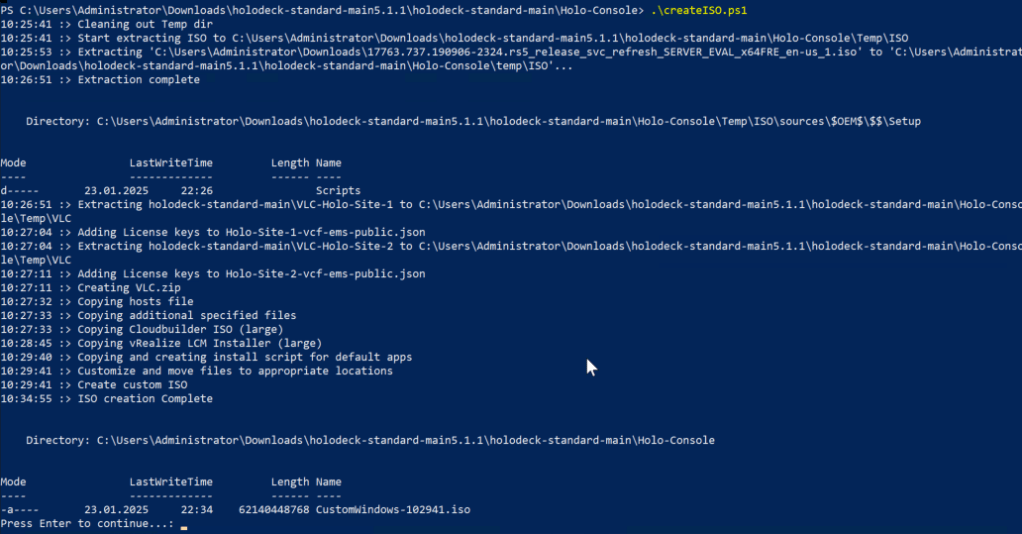
Next was copying the iso to my esxi host and attach it to the Holo-Console vm that you create in the pdf holo-setup-deploy-console.
Setting up the Holo-Console is described in this guide and it suggests resources here:

I would suggest to increase the memory and disk to 16GB and 300GB disk. This is your mgmt vm inside the Holodeck, so as long as you are not exhausted on resources, this is a good idea.
After booting the vm on the iso file, the rest of the process is automated, so sit back and wait, this takes a little while with several reboots.
Next up is the holo router, based on VMware Photon OS.
This is a *.ova file that you just deploy to your host.
Because the Holo-Console sits on vlan10 with a 10.0.0.x address, wich is the internal Holo vlan, you need this router to forward port3389 (RDP)from your mgmt network(maybe 192.168.12.x) and into vlan10.

Follow the *.ova install and under additional settings add your external address in your mgmt network.
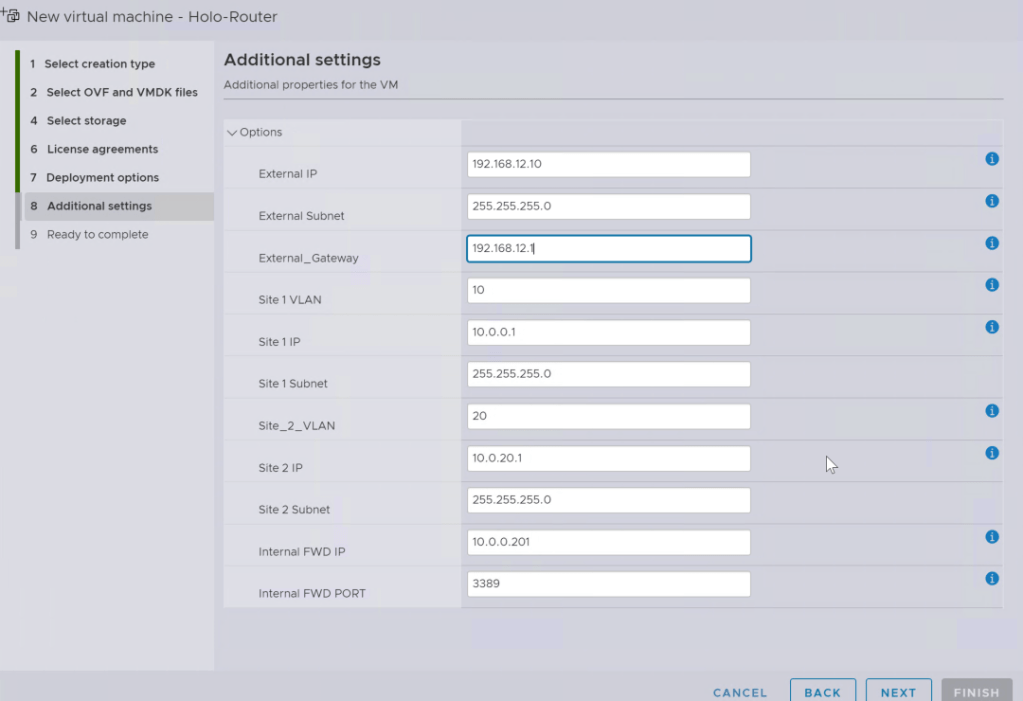
If you did the iso process correctly and configured your router correctly you should now be able to RDP to your Holo-Console and start the bring up process from the VCF-Lab constructor.

Here`s your Holo-Console ready to go.
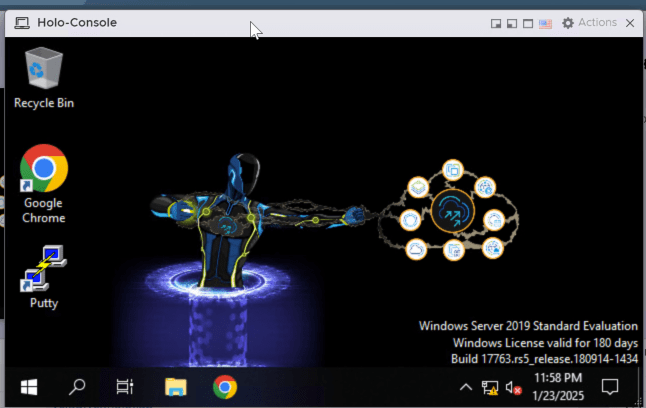
You find the files needed in folders Cloudbuilder and VLC.
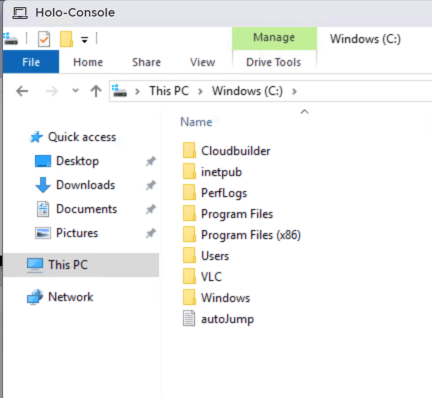
Browsing into the VLC folder you go to VLC-Holo-Site-1.

Here`s a guide how to run the VLC-Gui:
Here we run the VLCGui.ps in powershell.

This gives us the VCF LAB constructor.
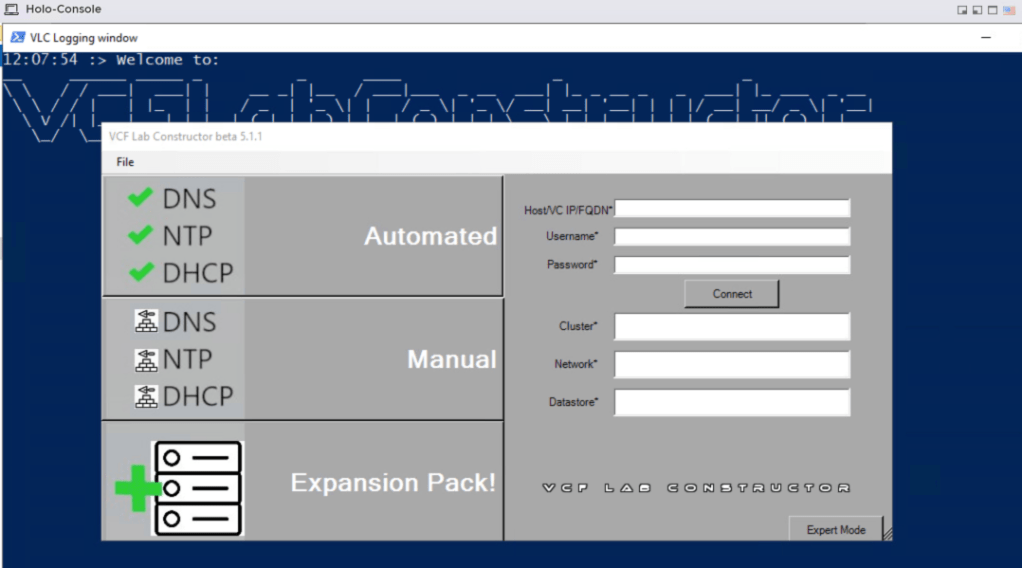
Fill in the host-info and choose automatic.
Fill the rest , and choose validate. This will give you the “construct” option if all info is correct.
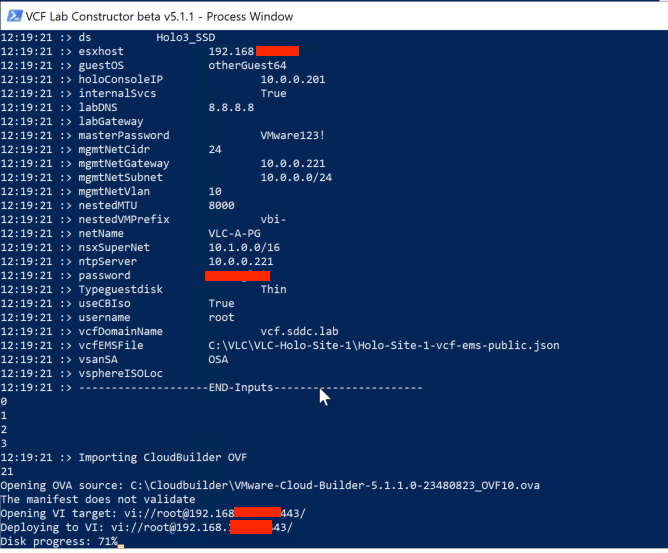
Now the bring up process is running and this will take about 3-4 hours. After about 30 minutes you can point your browser to the cloudbuilder vm on 10.0.0.221, where you can track the bringup process like you do in a normal VCF install.

Failures in this process comes up here in the GUI, with the possibility for fixing based on the error message and choosing retry instead of deploying from scratch. There are also logfiles in the /var directory of the cloudbuilder vm.
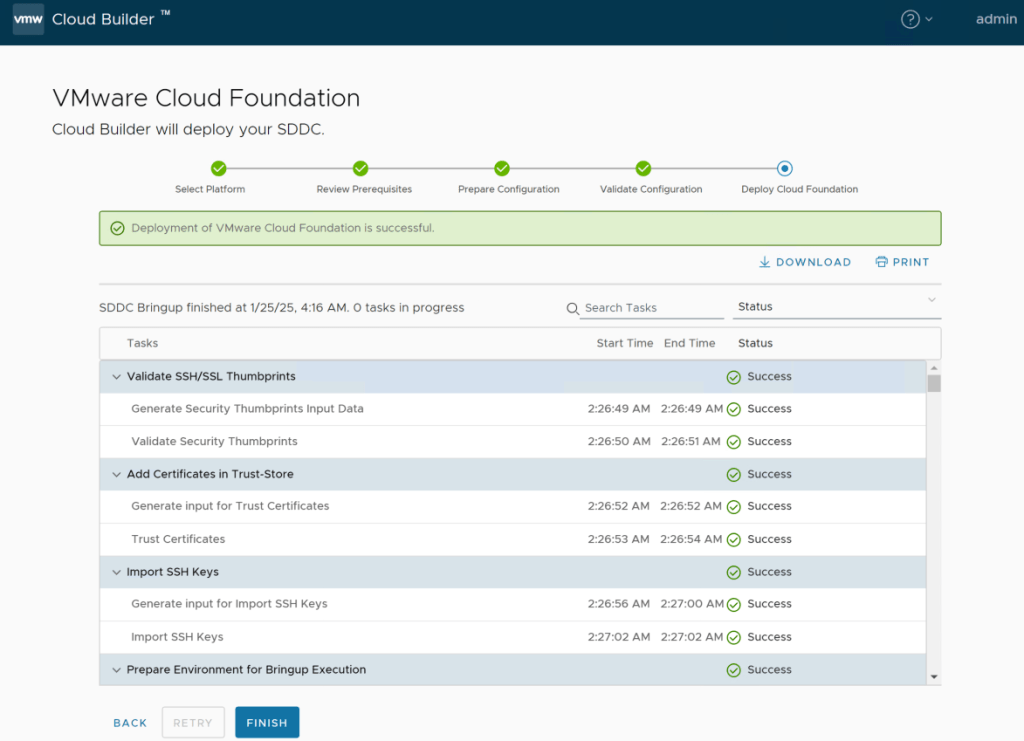
Go do something fun, and come back to a ready to go VCF LAB.
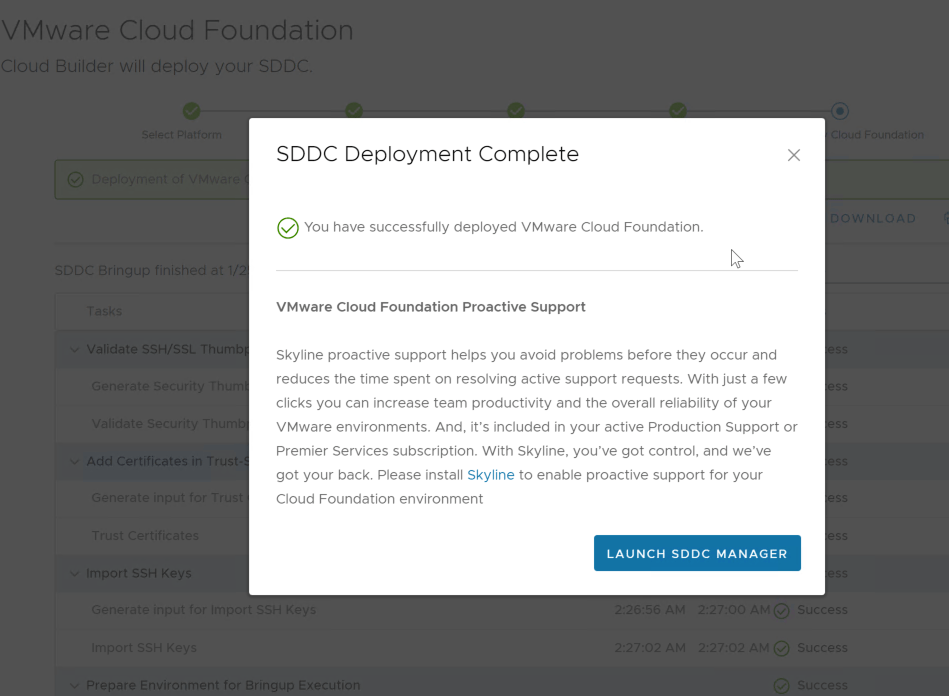
You are now ready to login to your VCF Lab and SDDC manager.
But for login and users, take a look at C:\VLC\VLC-Holo-Site-1 folder on your Holo-Console vm.
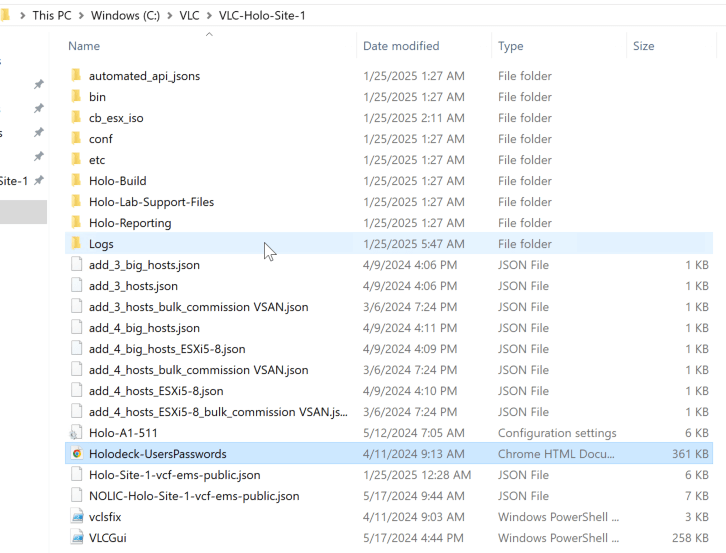
Here you have a *.html file with all the ip`s and passwords you need in your Holodeck.
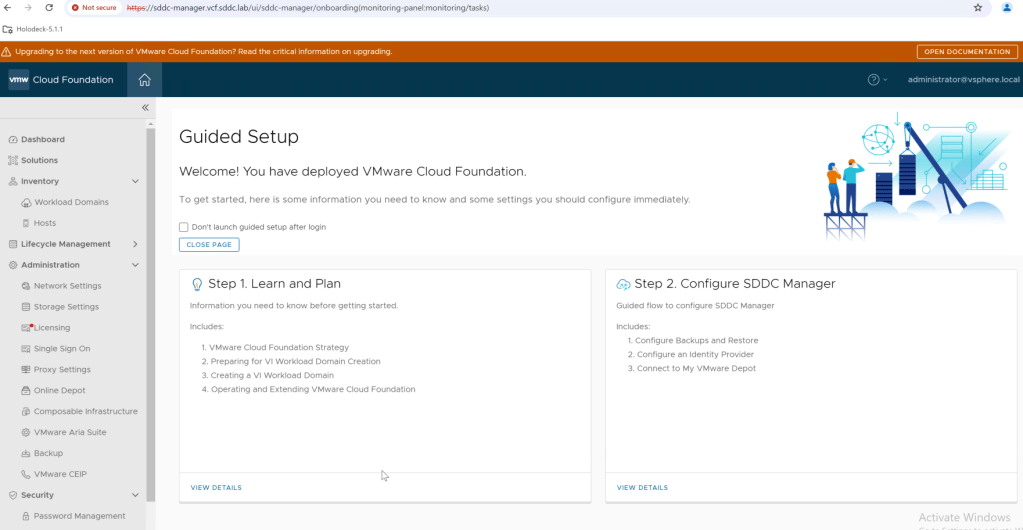
Then it`s just log in and start your lab.
 Bervid.net
Leave a comment