
So easy installer is complete, now what?
Well, you need a few more steps if you want orchestrator fully integrated with vCenter and vRa.
Check your inventory, and verify vAPI and vSphere vCenter Server.
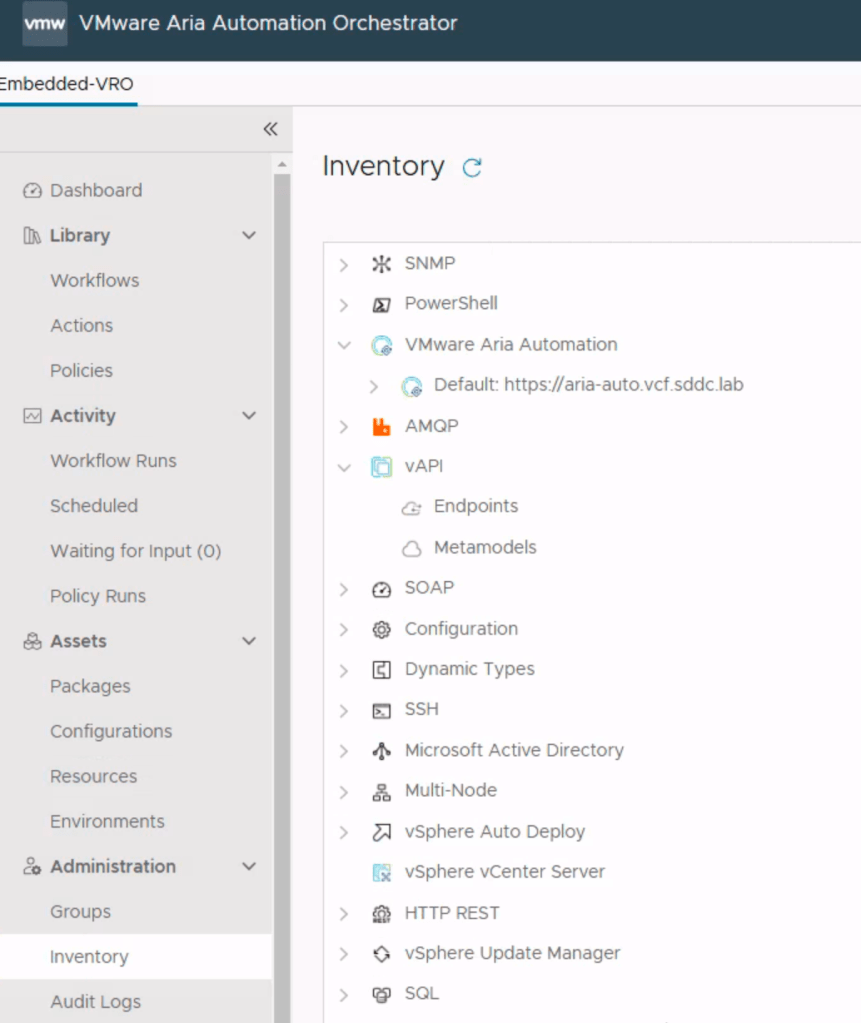
we start with vAPI. Go to workflows, and search for metamodel.
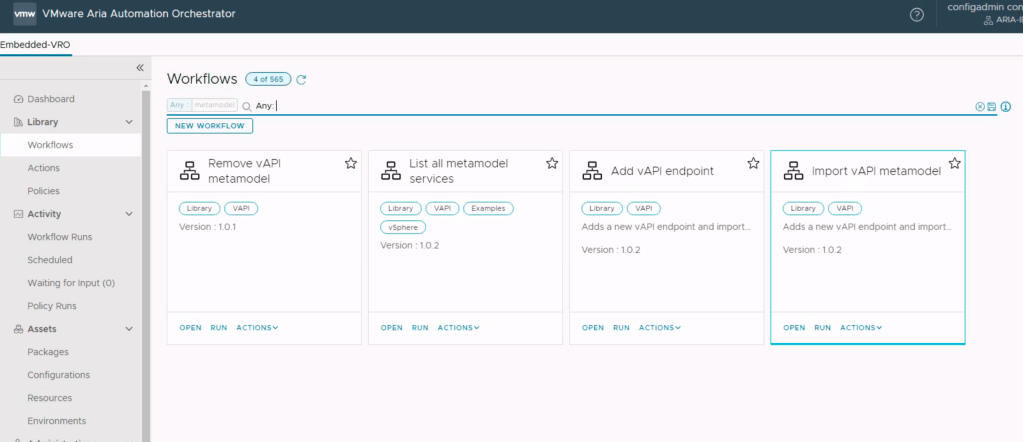
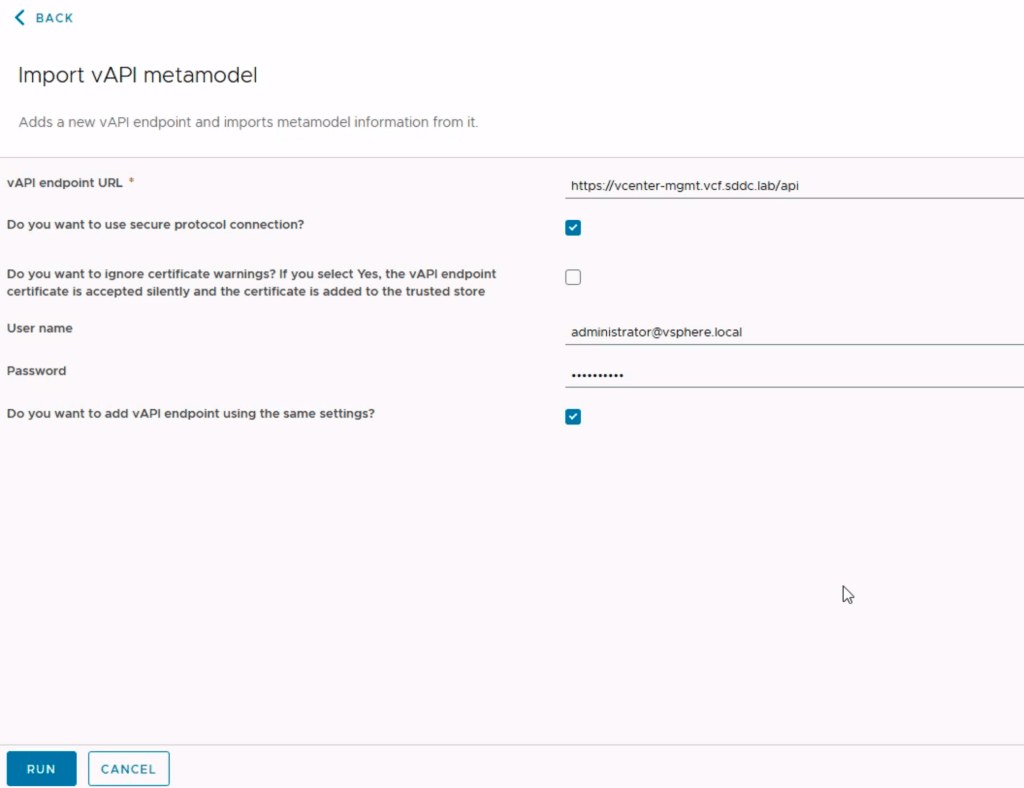
we will run import vAPI metamodel, because this adds endpoint at the same time.
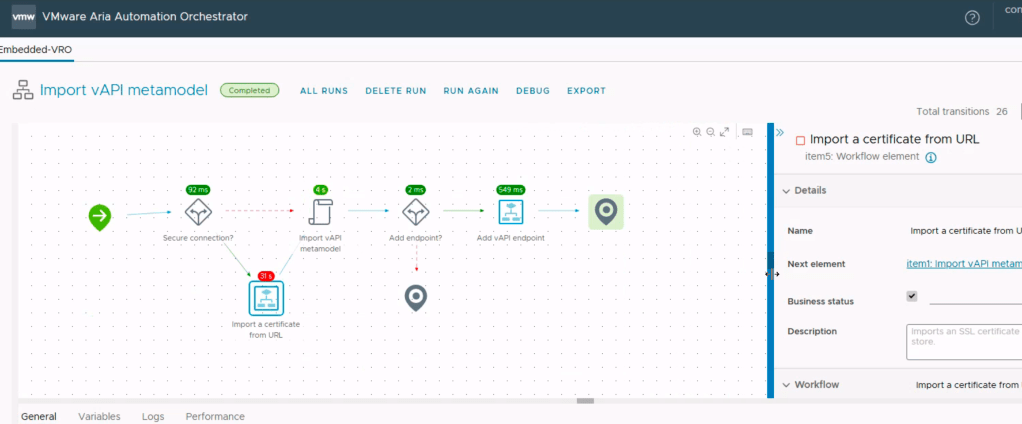
This gives the green “completed”, so we are OK.
Next up is the vCenter, so we search in workflows for add vCenter instance
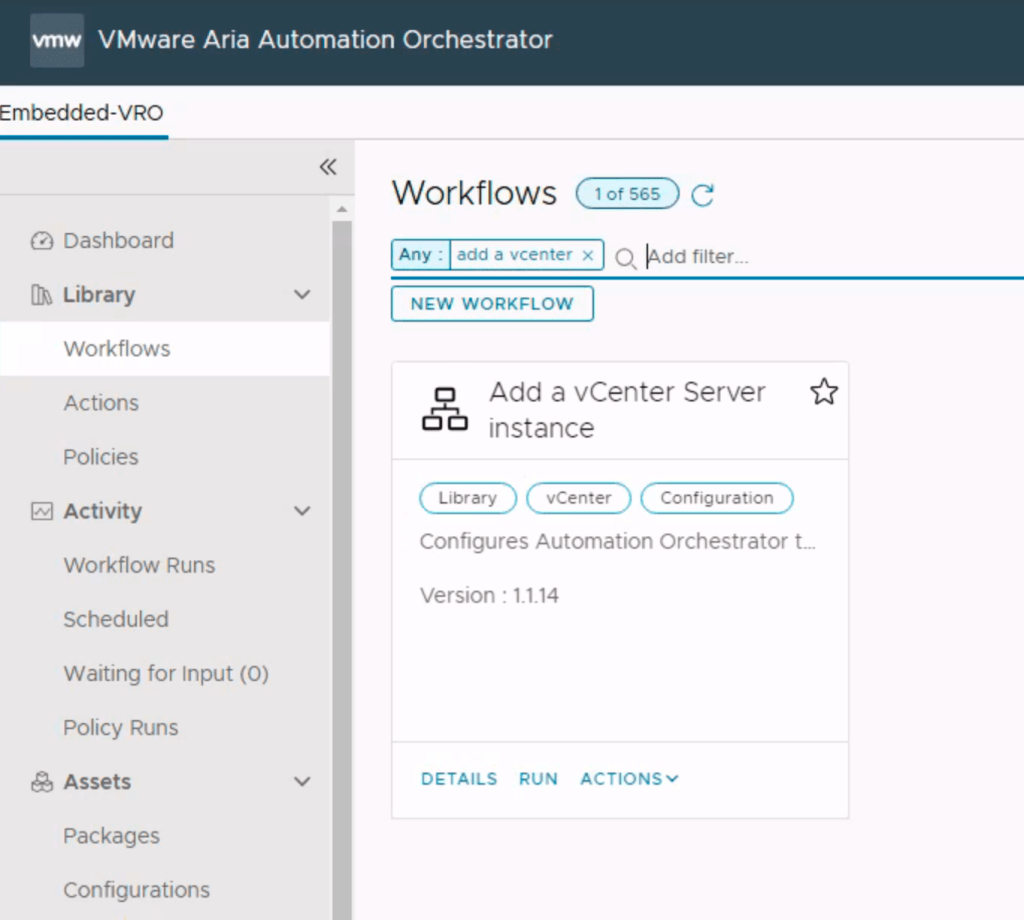
and we run it.
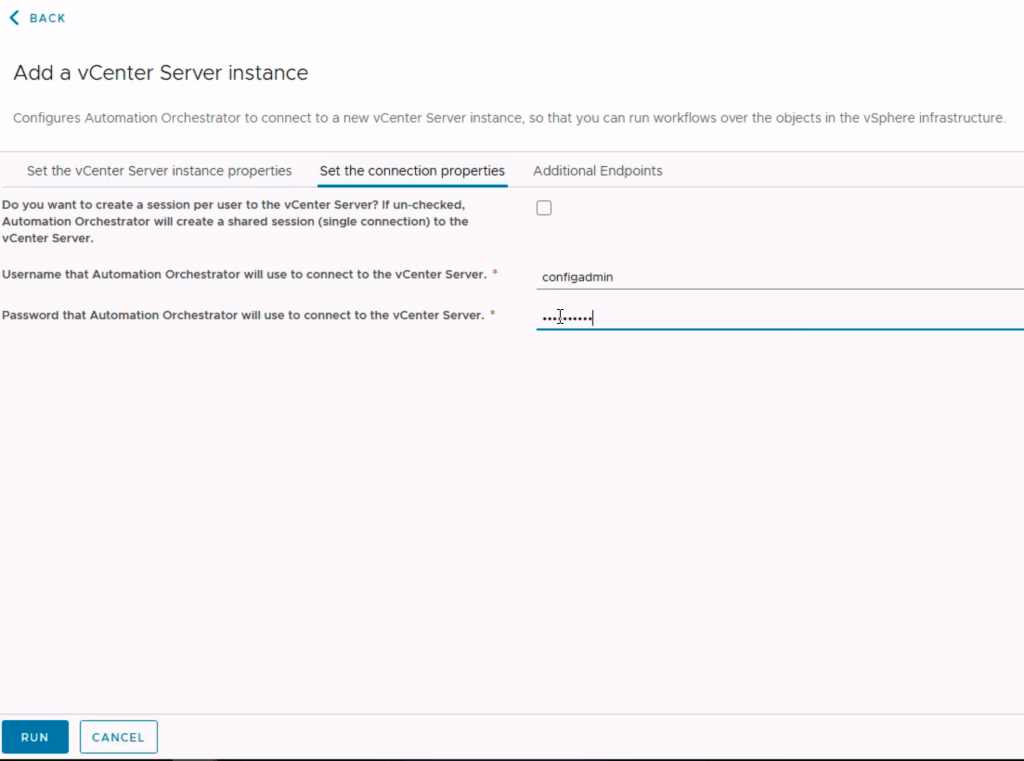
Here we add the fqdn for vcenter , and to avoid java runtime issues, do not choose per user session, add the login for vCenter and run it.
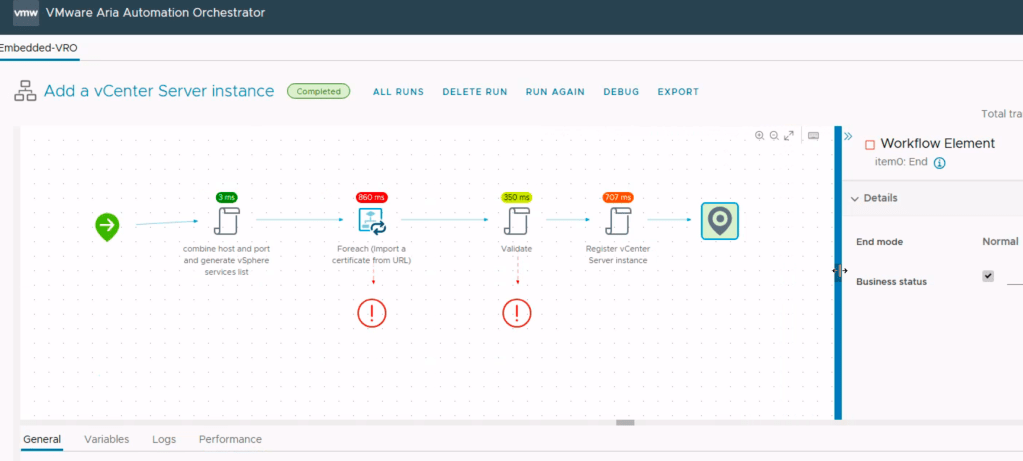
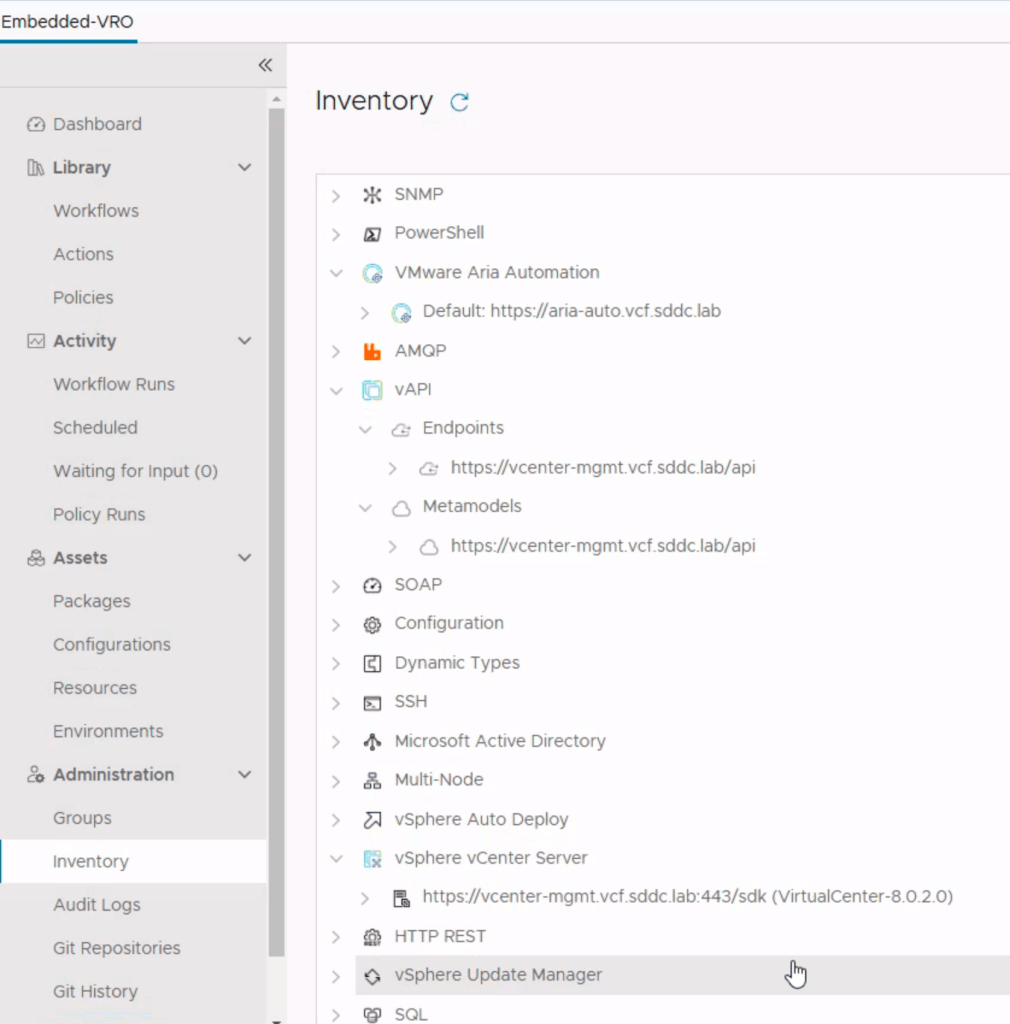
ok, so now we are ready to use workflows from service broker, so lets try that.
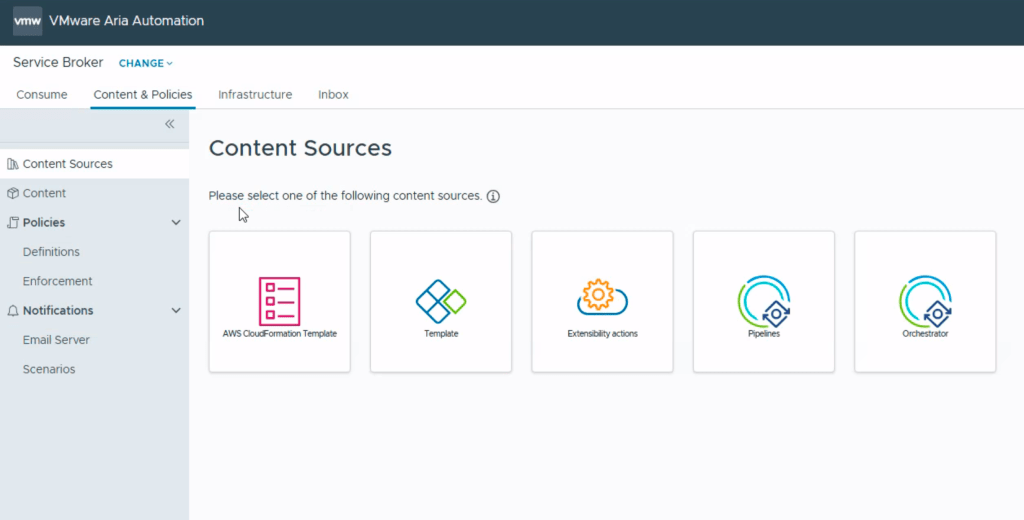
Go to service broker, choose content sources, and add new, add orchestrator source.
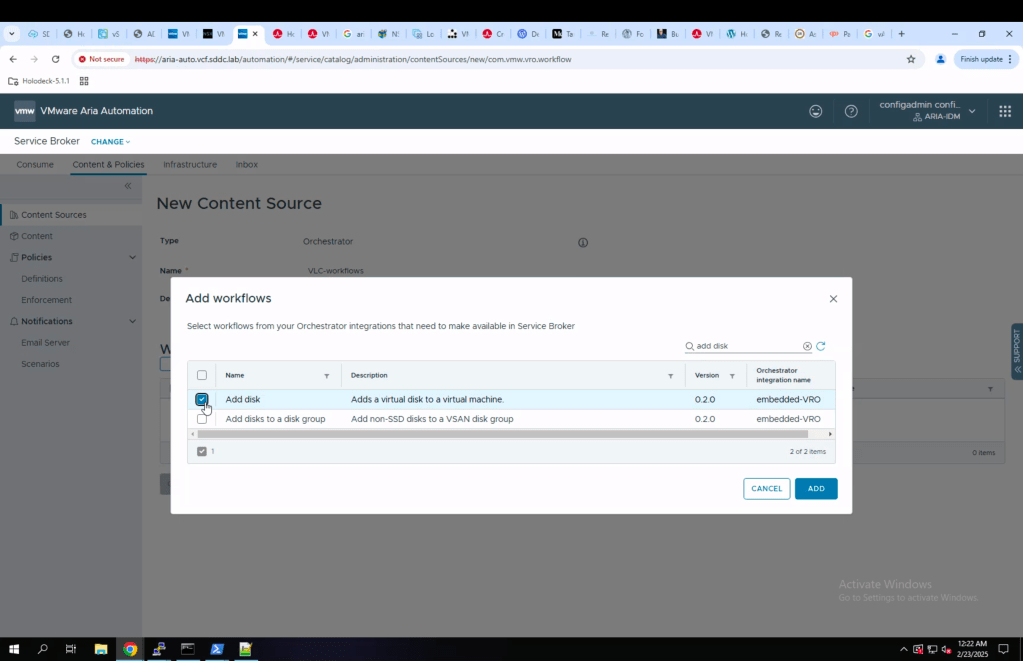
Here i set a name for my content source and choose a workflow.
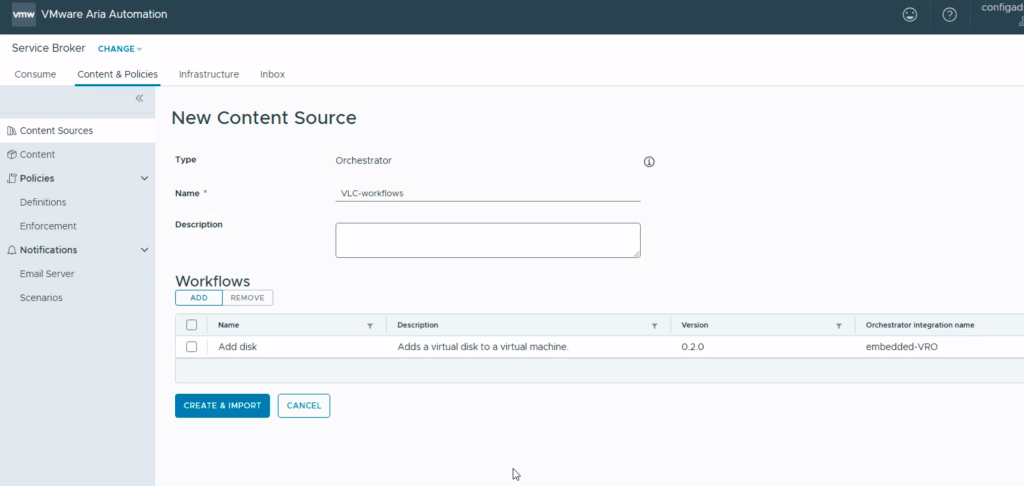
I added the workflow ” add disk”, so “create & import”
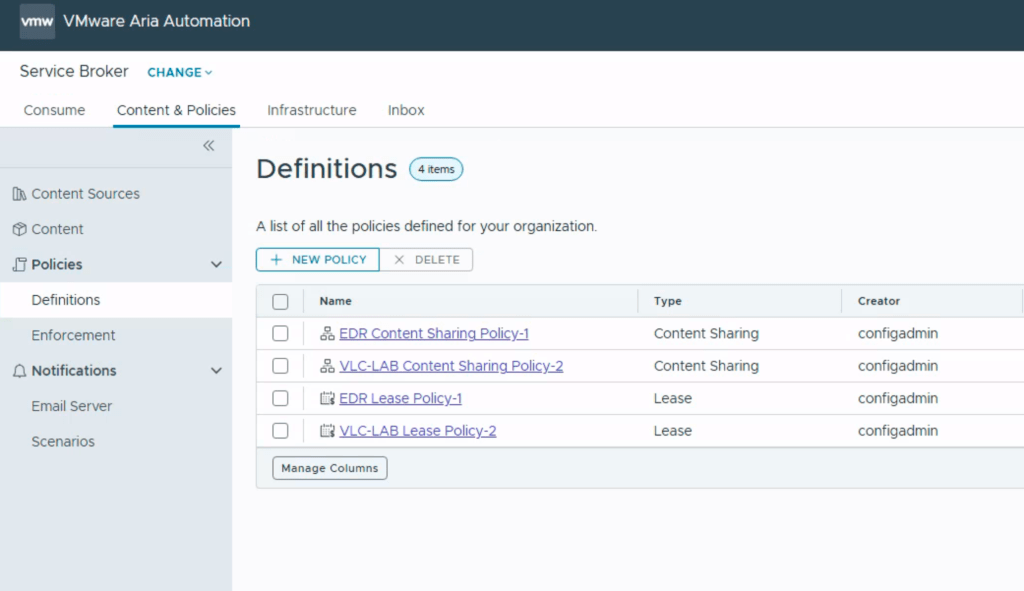
Then we need to add it to a content sharing policy.
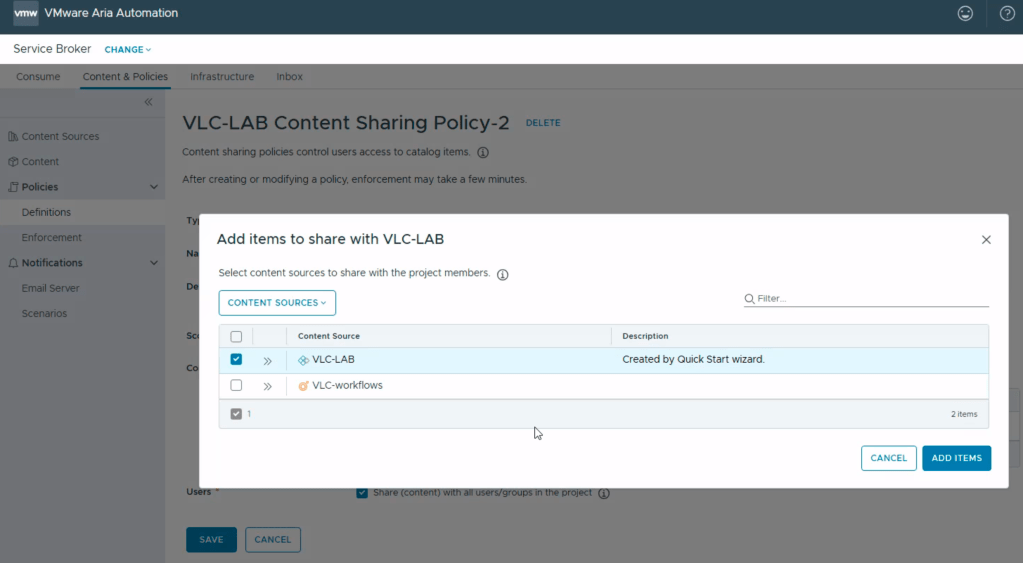
i opened my policy-2, and added the vlc-workflows
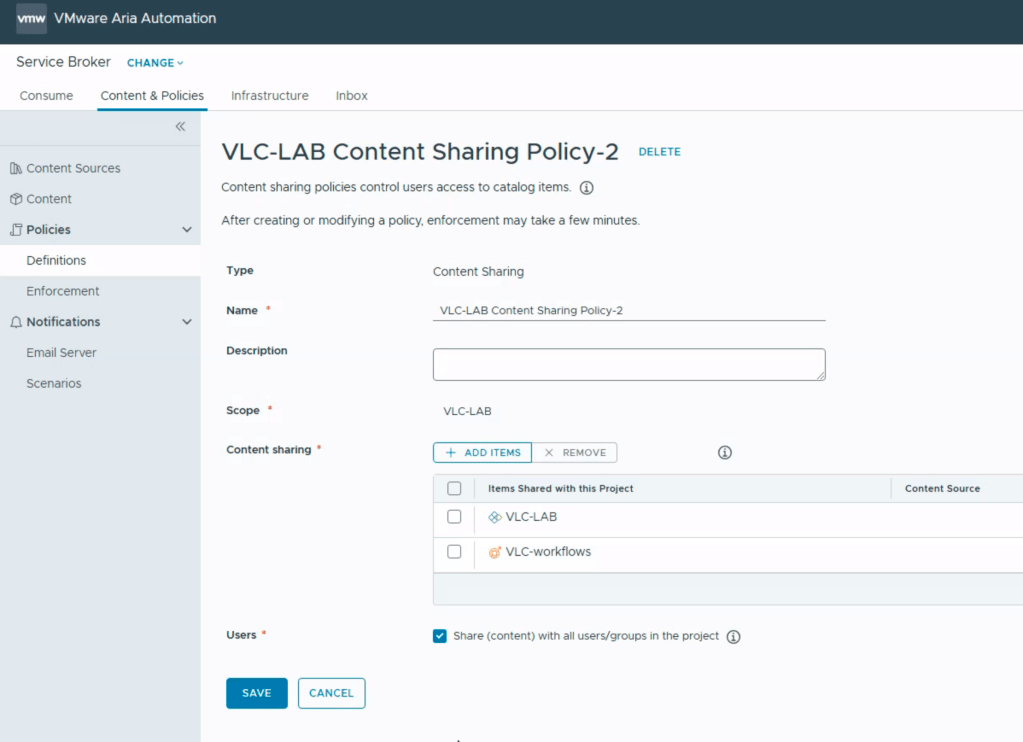
This means it will be shared along with my other content in my project.
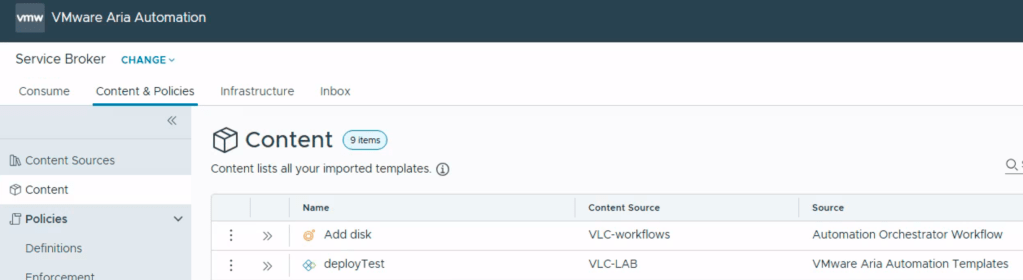
Looking at my content, “add disk” is now available.
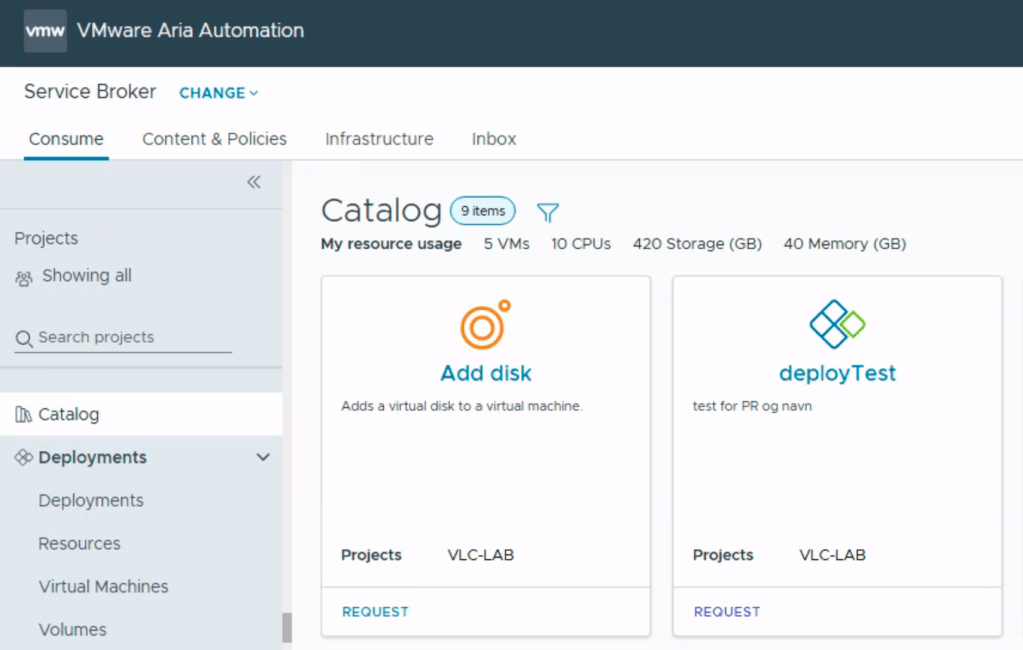
It is now available in my catalog, and we are ready to try:
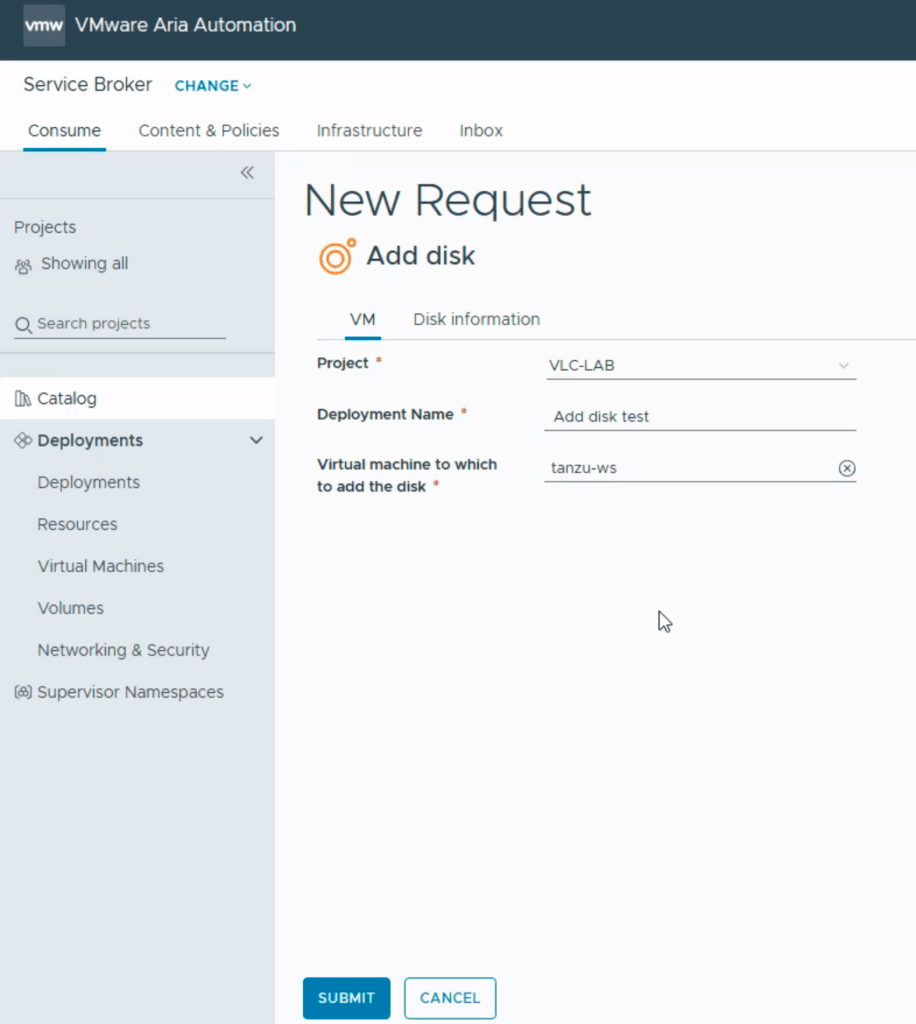
we choose a deployment name, and search for the VM.
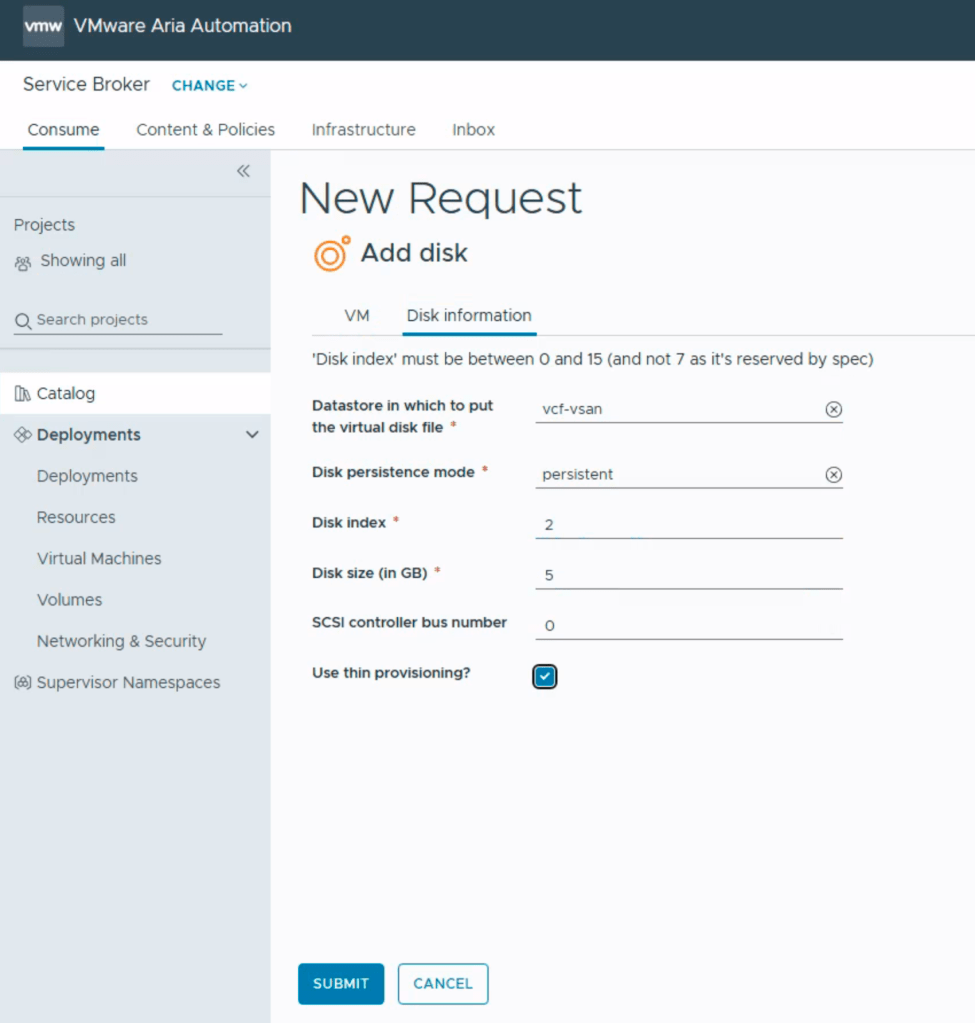
search for your datastore, disk mode, index, size, bus nr. and set disk to thin provisioned.
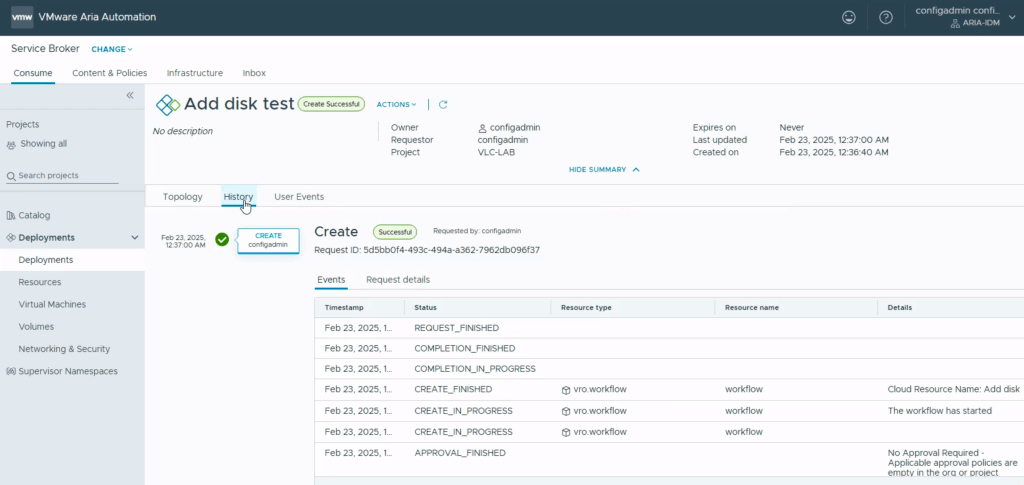
Watch your deployment, it completes, and you are ready to log in to your vm and partition your disk.
This was just an example, and orchestrator has around 600 preconfigured workflows, and you can also create your own if you want, good luck orchestrating !
 Bervid.net
Leave a comment