

Creating your own private VCF lab
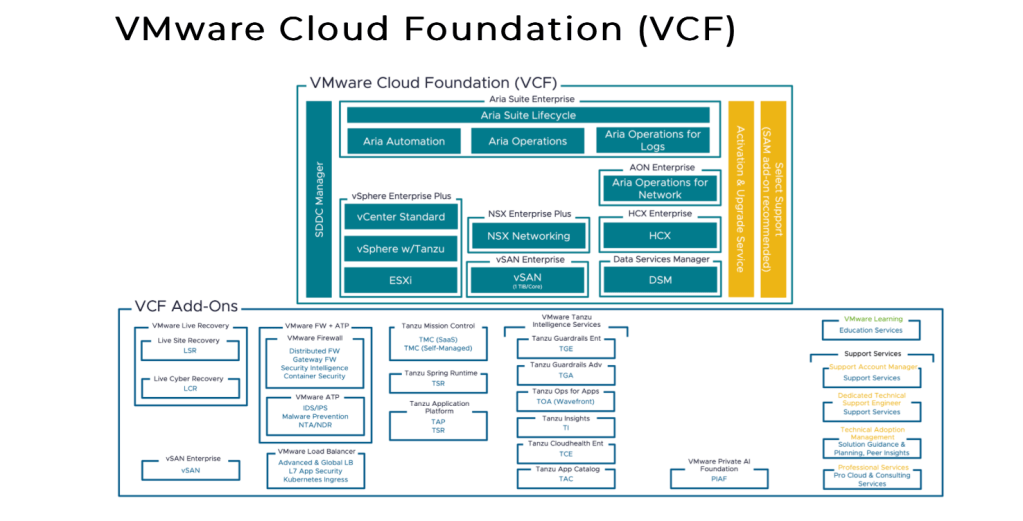
Creating a VCF lab can be a rewarding endeavor. It involves setting up your own virtualization infrastructure, including configuring and managing VMware Cloud Foundation. This hands-on approach allows you to gain valuable experience with VCF deployment, operations, and troubleshooting.
So, why would we use VMware Holodeck and not just setup basic VCF instead? This could be why:
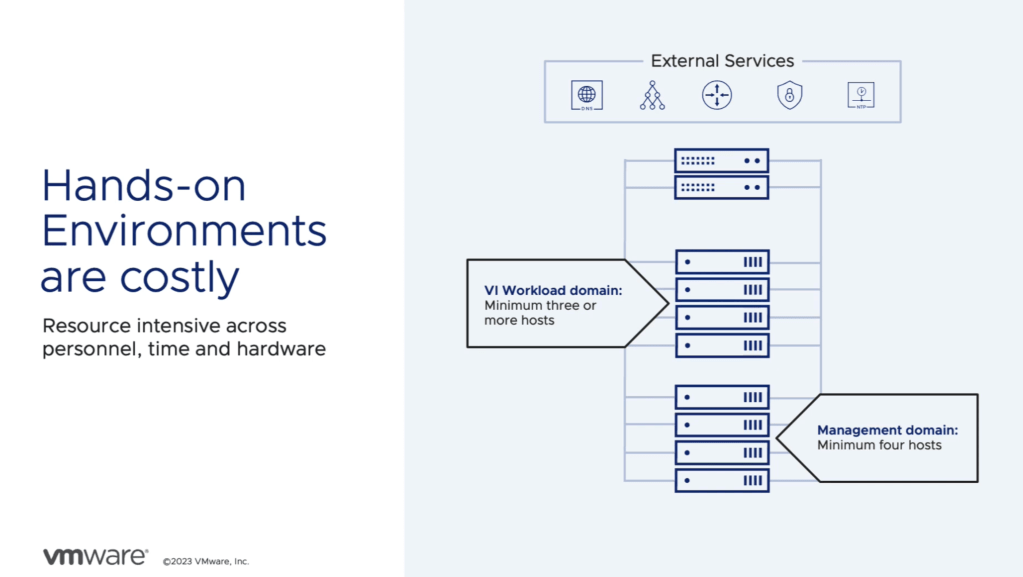
Minimum HW prerequisite for VCF are 4 nodes for the management domain, as well as a dedicated workload domain with a minimum of 3 hosts. Yes, you can use your management domain as workload domain, but if you don’t want to mix up mgmt and production, or for security reasons want to have this separate, then a split would be the way to go. If you don’t have 4 or 7 servers available in your lab, what then? Well, you could install Holodeck on ONE server instead with some nested esxi servers and vms..
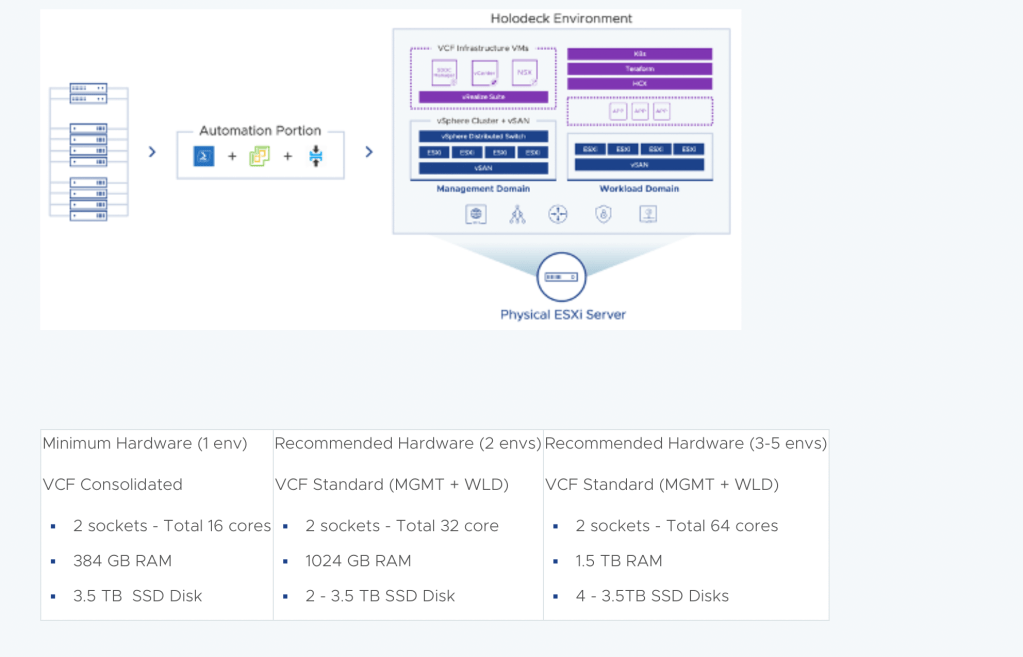
So how do we do it? Well, you need som HW, and it`s based on some prerequisites for Holodeck, with a minimum config:
- Memory 384GB
- CPU 16Core (supported on HCL for esxi 8)
- Disk SSD, 3,5TB
Here’s a full list:
Then the deployment prerequisites:
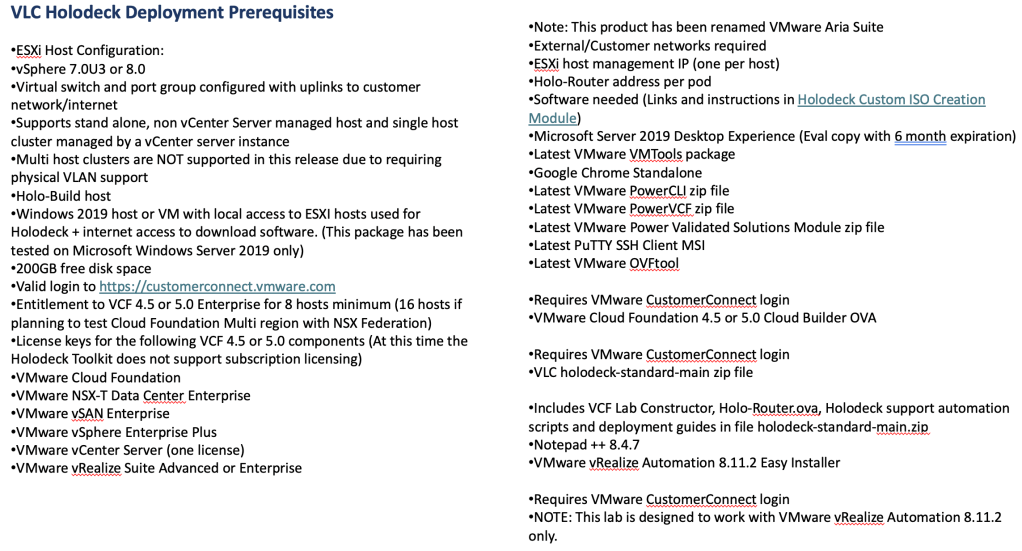
So that’s a list! And how long does it take? what’s the timeframe?
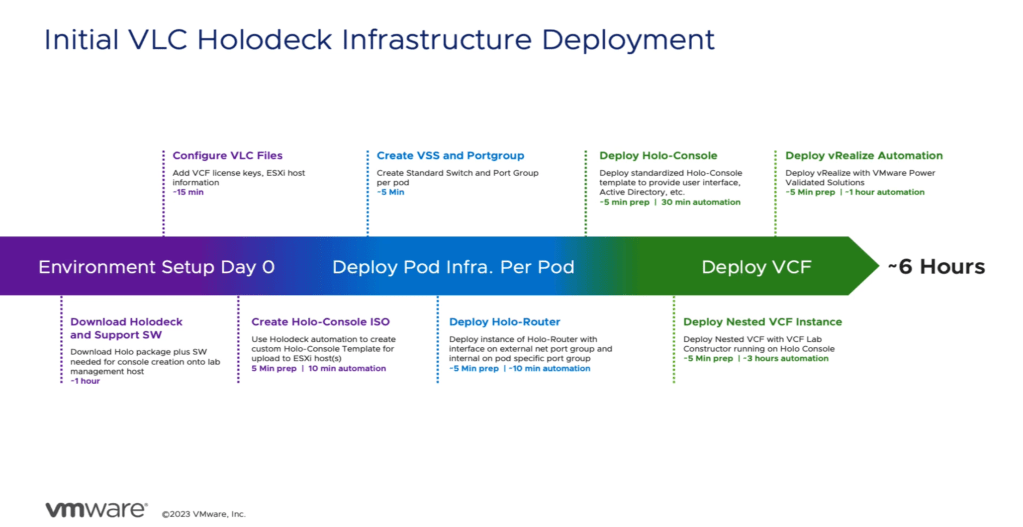
From the above picture and the prerequisites you can see that the timeframe expects a ready to go esxi from initial VLC deployment, so you can add some time, firmware-upgrading and configuring esxi 8.0 before you start. I would also go for creation of the VSS and port group in this step, no reason to wait for it.
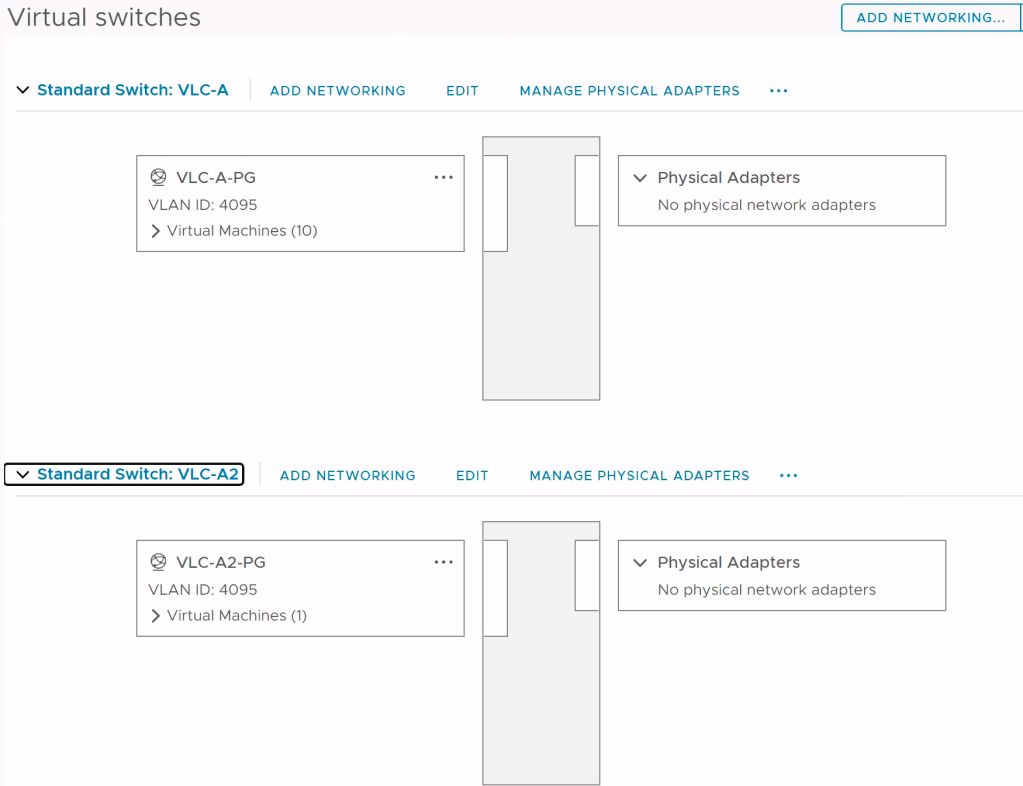
As a tip I would also create a windows mgmtvm 2019-2022server for the first phase with at least 200gb C-disk where you download all the software. This is because in step 2 you configure the CreateISO.ps script with paths to all the software, and c:\users\administrator\downloads is the default path in that script as well as a few others. Makes the process a bit easier and predictable. Running the script creates a 50 GB iso file with everything you need to create the Holo-Console VM. You need to copy the ISO to your esxi server and mount it in CD-ROM on your newly created vm Holo-Console. Let it boot from CD and wait til it finishes.
The holokit software comes with a ready to go *.ova file for the Holo-Router and this needs to be deployed to your esxi server. You add an external ip in CLI on the Holo-Router with SSH , and the router forwards port 3389 on this ip, so you can connect from your laptop with rdp and reach the Holo-Console VM on that exact address.
Having the Holo-Console vm as well as the Holo-Router vm, you are now ready to log into the Holo-Console vm and start the construct process.
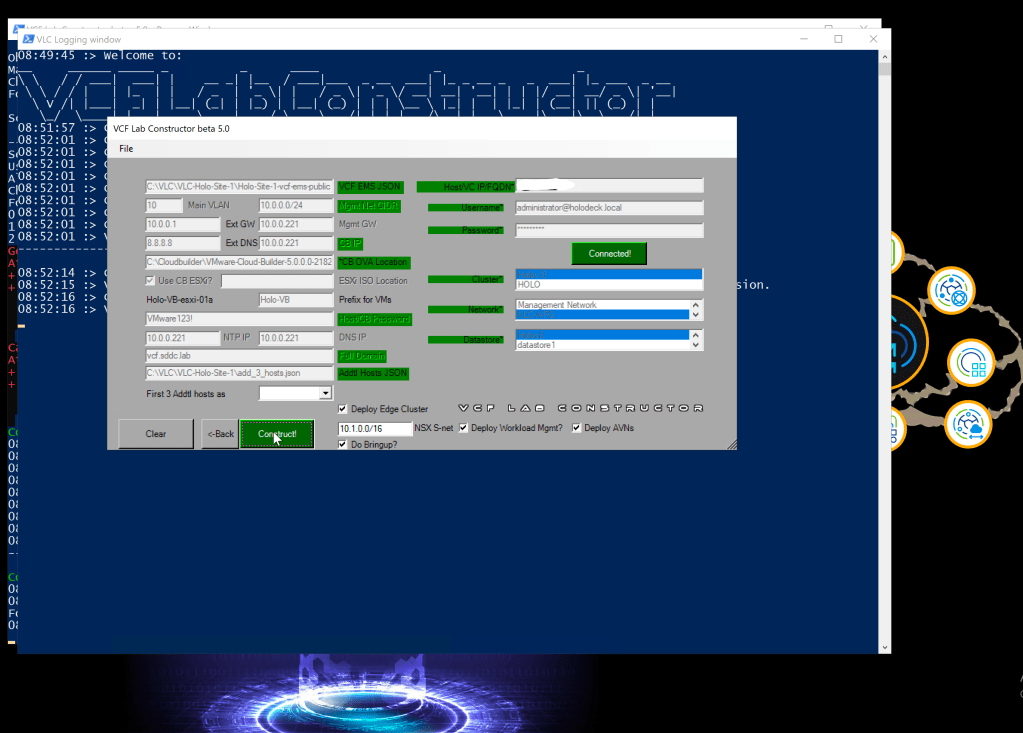
The VLCGUI validates your input, so on your left you have:
- Holo-site1 pod script
- vlan, Holo uses vlan10
- You can add an external DNS, so I used google
- You need to map the cloud builder file
- Set a prefix
- Internal NTP and DNS which is 10.0.0.221, the address for the Cloudbuilder.
- The domain
- And a *.json file containing info for the workload domain.
On your right you have:
- Vcenter or esxi server
- user and password
- mapping for cluster, network and disk
In the bottom you can choose to:
- Add an NSX edge cluster
- Supervisor cluster
- AVN, NSX segments/portgroups for Lifecycle manager vms
If you get all green under validation, you press construct and this starts the automated process.
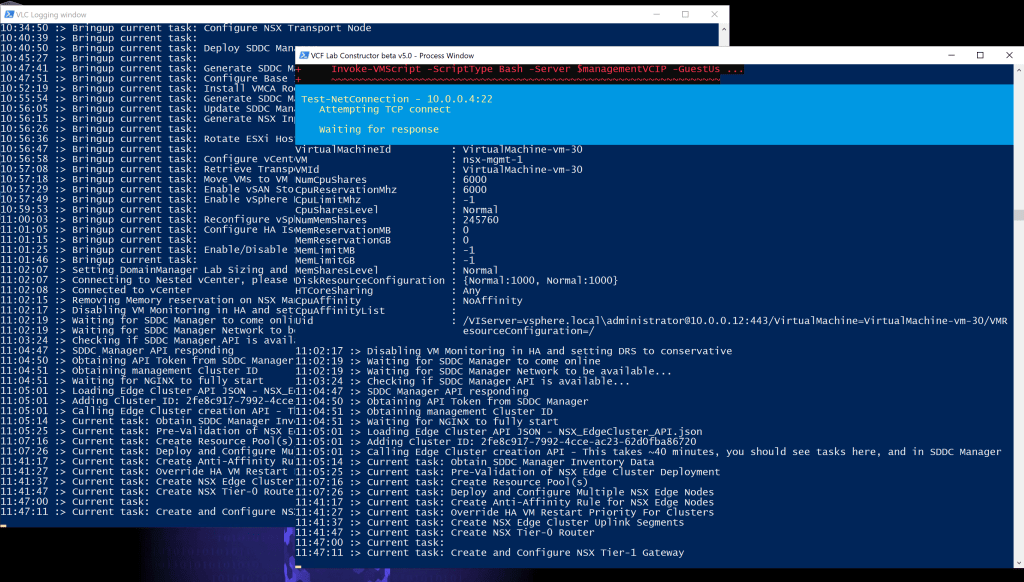
For me this took about 3.5 hours, and during this process you can watch the individual tasks in the powershell or you point your browser to https://10.0.0.221/bringup to watch it there as well. This is available after the cloudbuilder is created, and an initial task in the construct process. Give it about 30 min, and it’s probably ready to watch. If you where setting up a basic VCF solution, this would be the place to watch the process during installation as well.
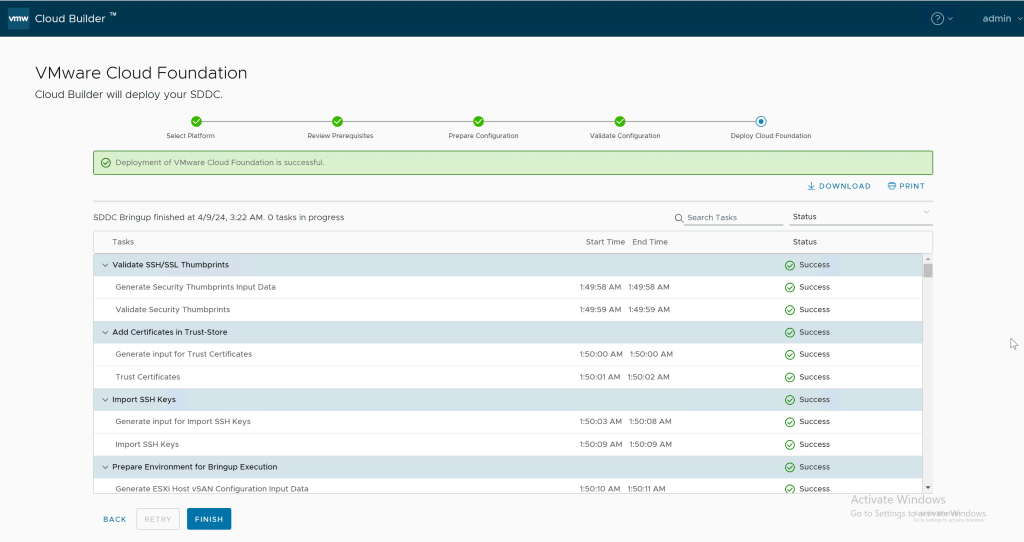
After a successful deployment you have a fully configured SDDC environment “ready to go”. But what does that mean actually? Lets take a look.
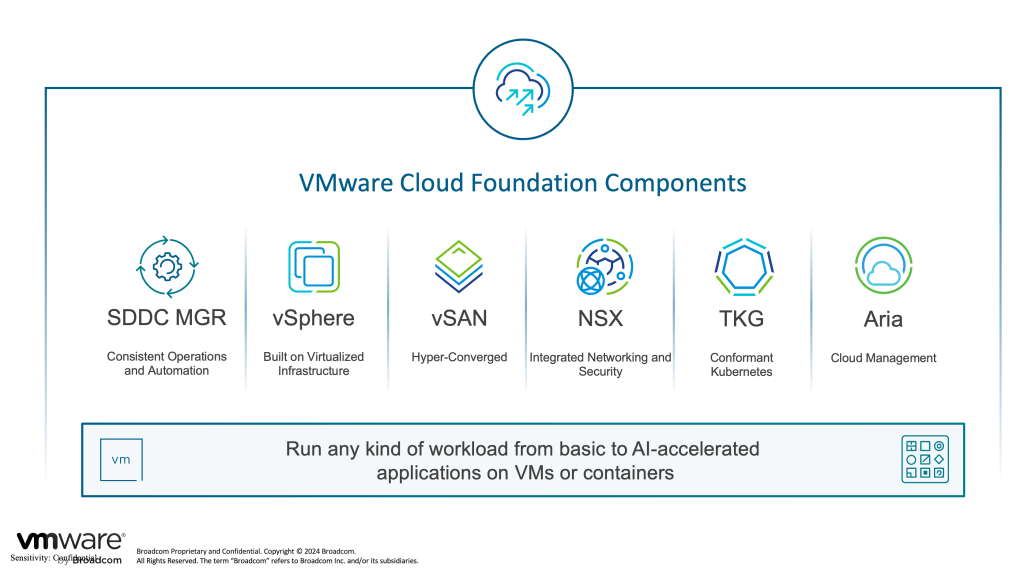
Now you have:
- SDDC manager
- 4-node vSphere mgmt cluster
- Fully configured software defined storage with vSan
- Fully configured software defined network with NSX
- “a ready to go” supervisor cluster to run Kubernetes
- Aria LCM,IDM,vRA,vRNI,vRLI,vROPS in Enterprise editions
- (all the Aria products needs to be installed separately after deploy)
SDDC manager dashboard where all the magic happens:
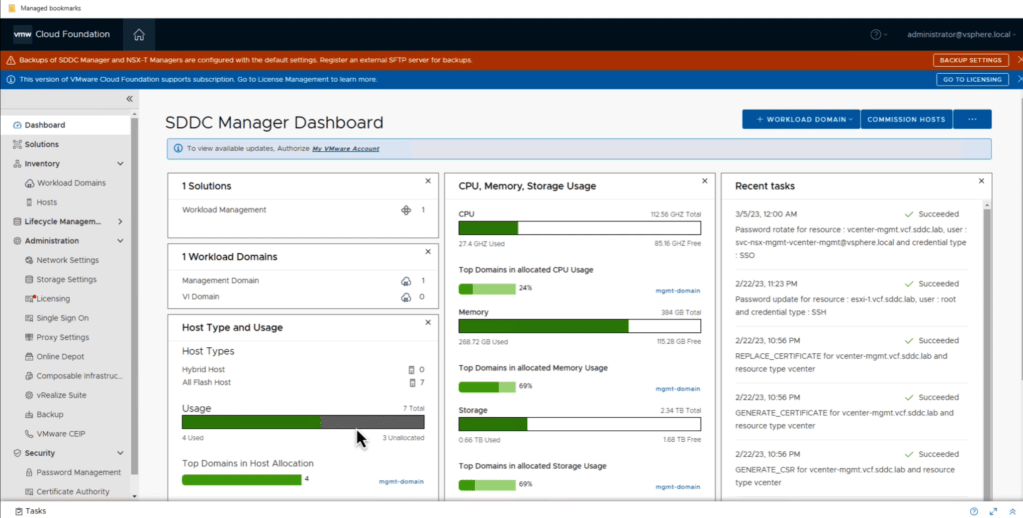
In Holodeck 5.0 you need to manually install the Lifecyclemanager with IDM and Aria Automation with an easy setup iso file.
In future release of holodeck i guess it would reflect the basic VCF installation where this was said to be an automated process, but in 5.1 this is still a manual process. Next version maybe…
Important Holodeck links:
https://core.vmware.com/resource/holo-toolkit-20-overview
Holo Introduction:
https://core.vmware.com/introducing-holodeck-toolkit?
Download Holokit:
https://via.vmw.com/Get-Holo-Toolkit
Holo Setup:
 Bervid.net
Leave a comment